
Between two appointments there is time to reset.
Wipe the station, disinfect tools, make the bed, write notes. With buffer time that time gets a fixed place in the calendar instead of creeping into the length of the service. Customers only book times you really have free.
Sound familiar?
- Reset time hides in the service length
- 45 minutes of cutting become 60 so there is room afterwards. Calendar and reports no longer match: the appointment takes 45 minutes and sits in the book as 60.
- The next customer is already there
- Without a buffer the system packs appointment against appointment. The station is not ready yet and the next customer is already waiting.
- Two buffers turn 15 minutes into 30
- Some systems add the buffer after one appointment and before the next. That eats the day. In Terminz the larger of the two counts, because the station only gets wiped once.
What buffer time does in Terminz
Before, after or both
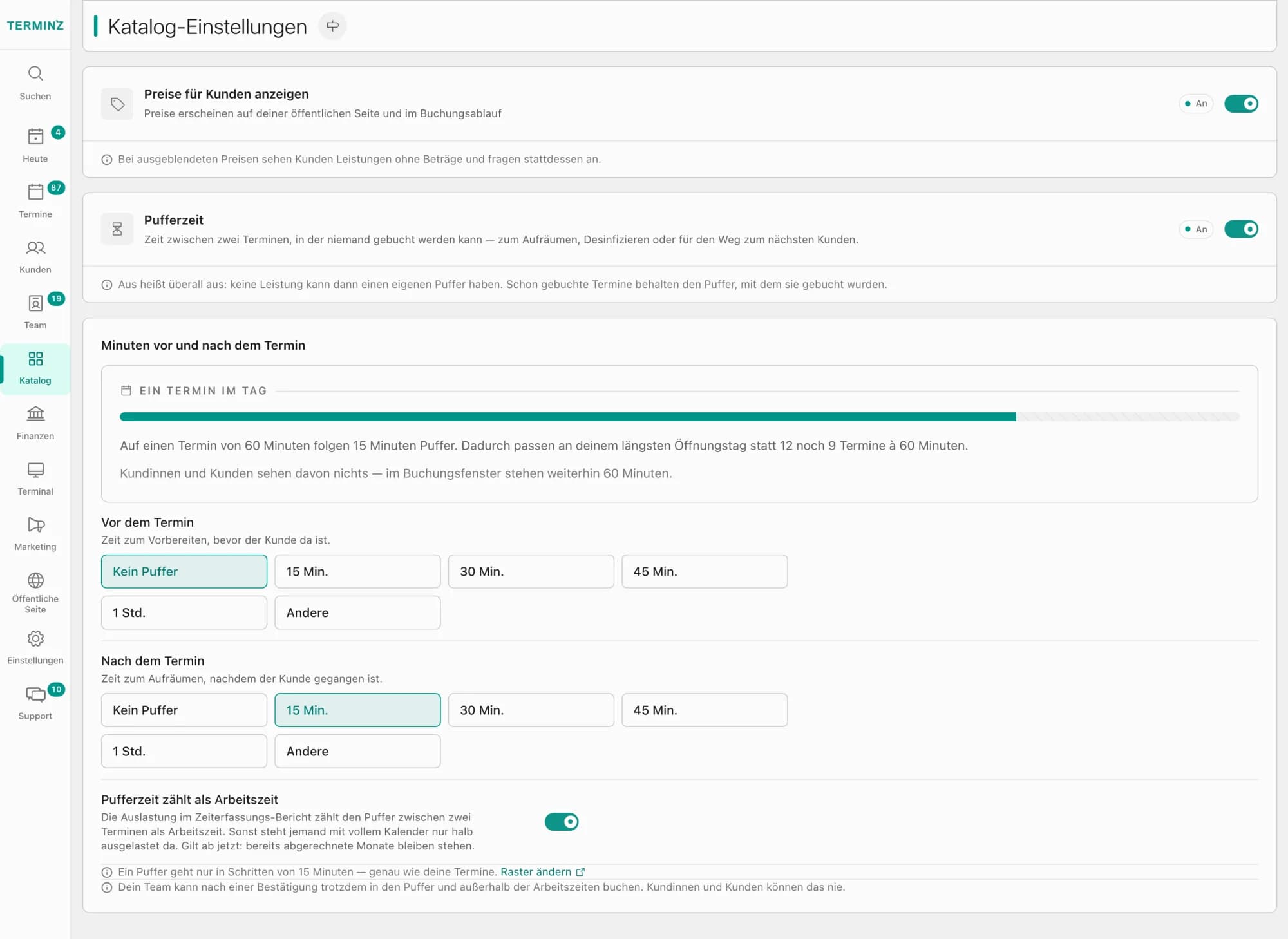
For each service you set separately how many minutes before and after the appointment stay blocked. Up to four hours are possible.
One control for the whole location
You set a default for all services and see beforehand which services it overwrites. Afterwards you adjust single services.
Off when you do not need it
Buffer time switches on and off per location and starts at zero everywhere. Switched off, the fields disappear and your calendar stays as it is.
Matches your time grid
Buffers are multiples of your time grid, for example 15 minutes. That avoids odd start times like 10:05 next to 10:15.
One buffer per handover
Between two appointments the larger of the two buffers applies, not the sum. If a customer books several services in a row, no gaps appear between them.
Visible in the calendar, invisible to customers
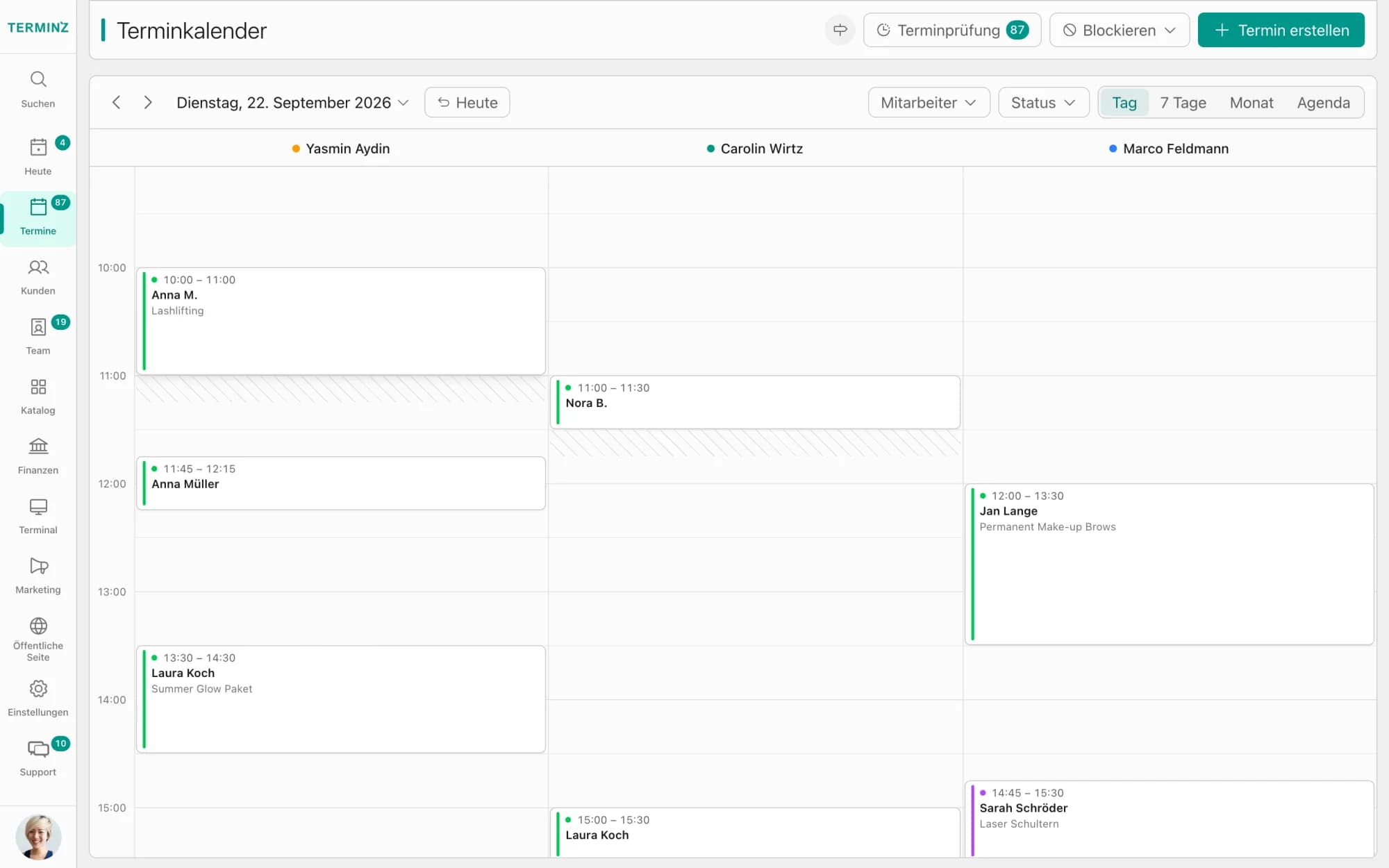
In the calendar and the till terminal the buffer shows as a band around the appointment. Customers only see the free times. Invoice, reminder and review request keep using the real length of the appointment.
What it looks like
Frequently asked questions
How is this different from processing time?
Buffer time is time when the staff member is unavailable and the customer has already left. Processing time is time when the customer is still there and the staff member would be free, for example with color or a mask. Terminz offers buffer time today, processing time is not included yet.
Does it cost extra?
No. Buffer time is included in every Terminz plan at no extra charge.
Do my customers see the buffer?
No. Customers are only offered times that are free after the buffers are deducted. Emails, reminders and receipts show the real length of the appointment.
Can I still book into a buffer?
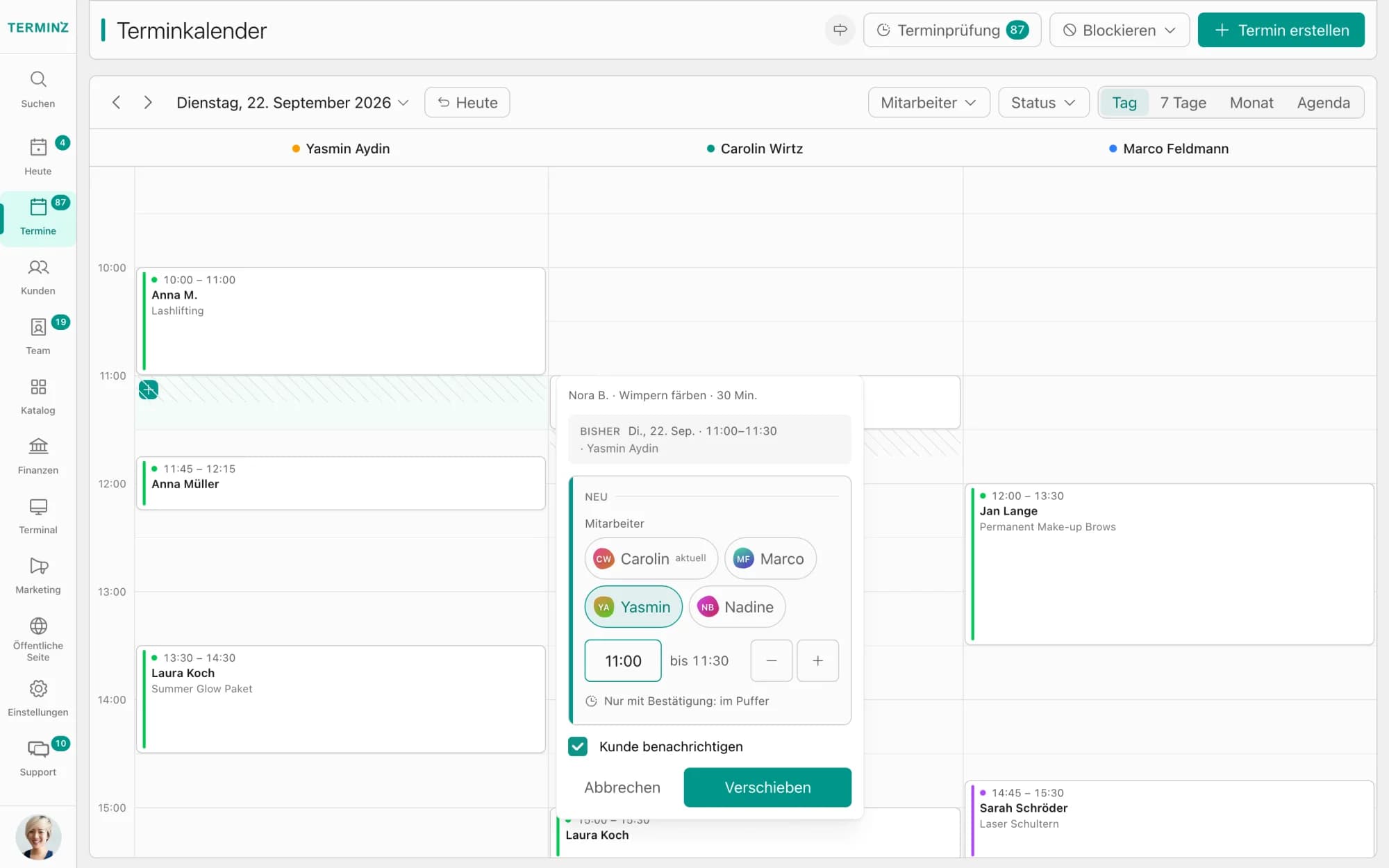
Yes, if you have the permission. Terminz asks before booking, and the appointment then carries a note saying who confirmed the exception. You decide who may do this in the permissions.
Does the buffer count as working time?
That is a setting. If the buffer counts as time worked, it flows into time tracking, otherwise it does not.
Give resetting a place in the calendar.
In the demo we show you how buffer time looks with your services.